
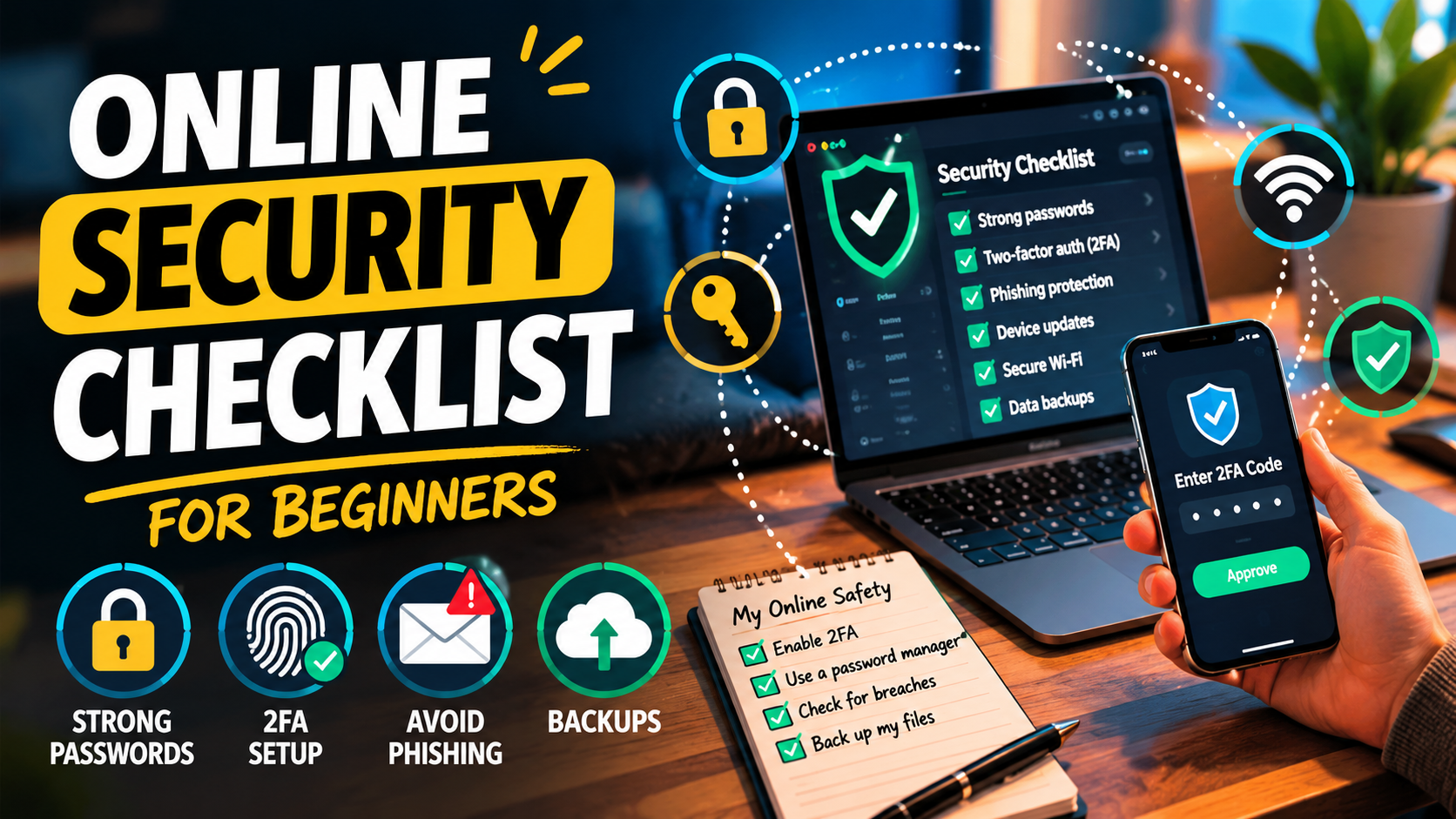
Most people don’t think about online security until something goes wrong – a hacked account, stolen password, scam message, or suspicious bank transaction.
The good news? You don’t need to be a cybersecurity expert to protect yourself online. A few simple habits can dramatically reduce your risk.
This beginner-friendly checklist covers the essentials: passwords, phishing, devices, Wi-Fi, apps, and everyday digital safety.
Why Online Security Matters More Than Ever
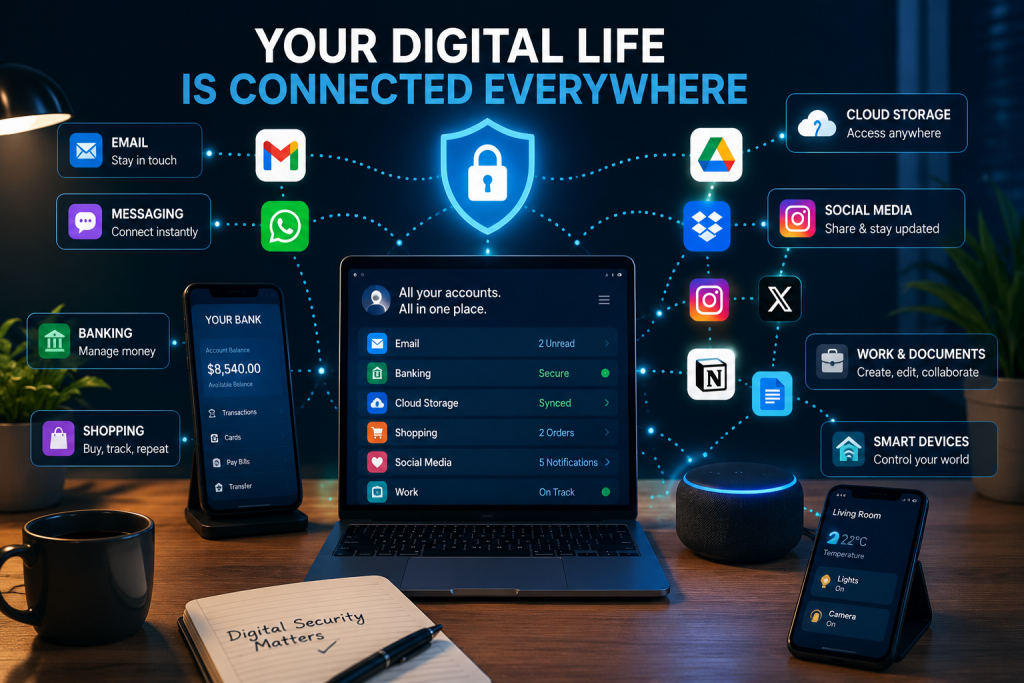
Today, almost everything is connected:
- banking
- shopping
- work
- cloud storage
- social media
- messaging apps
- smart devices
That convenience also creates more opportunities for scammers, hackers, and data leaks.
Even basic security improvements can help prevent:
- account takeovers
- identity theft
- financial fraud
- malware infections
- data loss
- privacy violations
And no – you don’t need expensive software to get started.
1. Use Strong, Unique Passwords
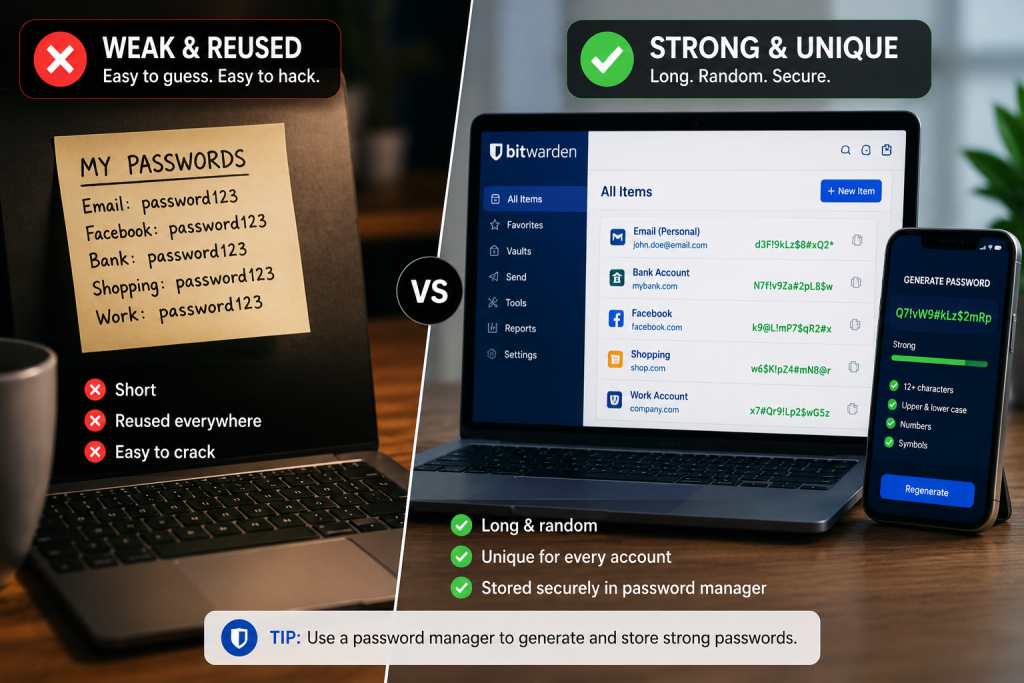
This is the single biggest security improvement most people can make.
A lot of beginners still use:
- the same password everywhere
- simple passwords like
123456 - birthdays or names
- short passwords reused for years
That’s dangerous because if one site gets breached, attackers will try the same password everywhere else.
What To Do Instead
Use:
- long passwords
- unique passwords for every account
- random combinations of words, numbers, and symbols
Good example:
Coffee!River7Laptop$NightBad example:
john1995Use a Password Manager
Remembering dozens of strong passwords manually is unrealistic.
Password managers generate and store secure passwords for you.
Popular options include:
- Bitwarden
- 1Password
- Dashlane
- Apple Passwords
- Google Password Manager
For most beginners, Bitwarden is an excellent free starting point.
2. Turn On Two-Factor Authentication (2FA)
Even strong passwords can leak.
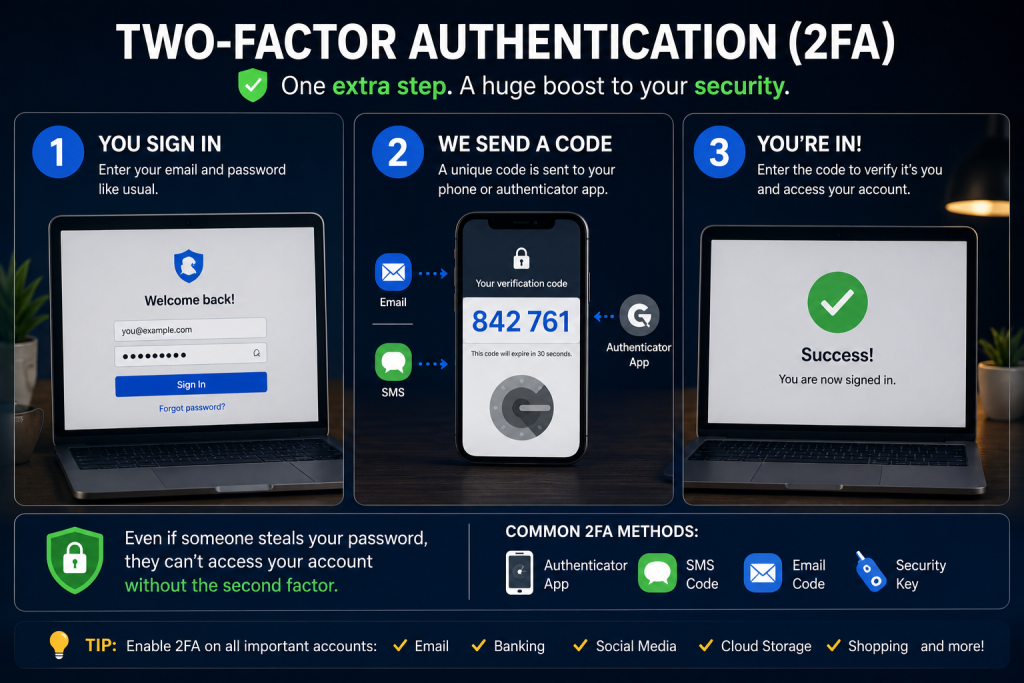
Two-factor authentication adds a second layer of protection by requiring:
- your password
- a temporary verification code
Usually from:
- an app
- SMS
- security key
Best Option: Authenticator Apps
Use apps like:
- Google Authenticator
- Authy
- Microsoft Authenticator
Avoid SMS-based 2FA when possible — authenticator apps are generally safer.
Priority accounts for 2FA:
- banking
- cloud storage
- social media
- password manager
3. Learn To Recognize Phishing Scams
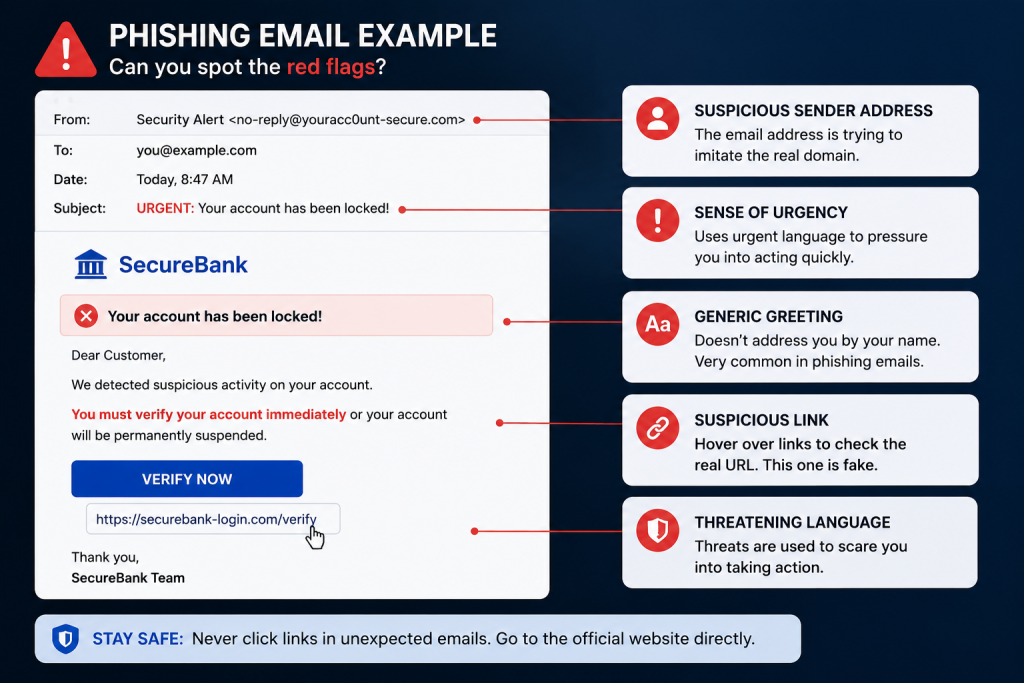
Phishing is when attackers trick you into giving away passwords or personal information.
Common phishing examples:
- fake bank emails
- “your account is locked” messages
- fake delivery notifications
- fake login pages
- crypto scams
- urgent “verify now” alerts
Red Flags To Watch For
Be suspicious if a message:
- creates urgency
- asks for passwords or codes
- contains strange links
- has spelling mistakes
- comes from an unusual email address
- asks for payment in crypto or gift cards
Simple Rule
Never click suspicious links directly from:
- SMS
- DMs
- Telegram groups
- random popups
Instead:
- open the official website manually
- log in normally
- check notifications there
4. Keep Your Devices Updated
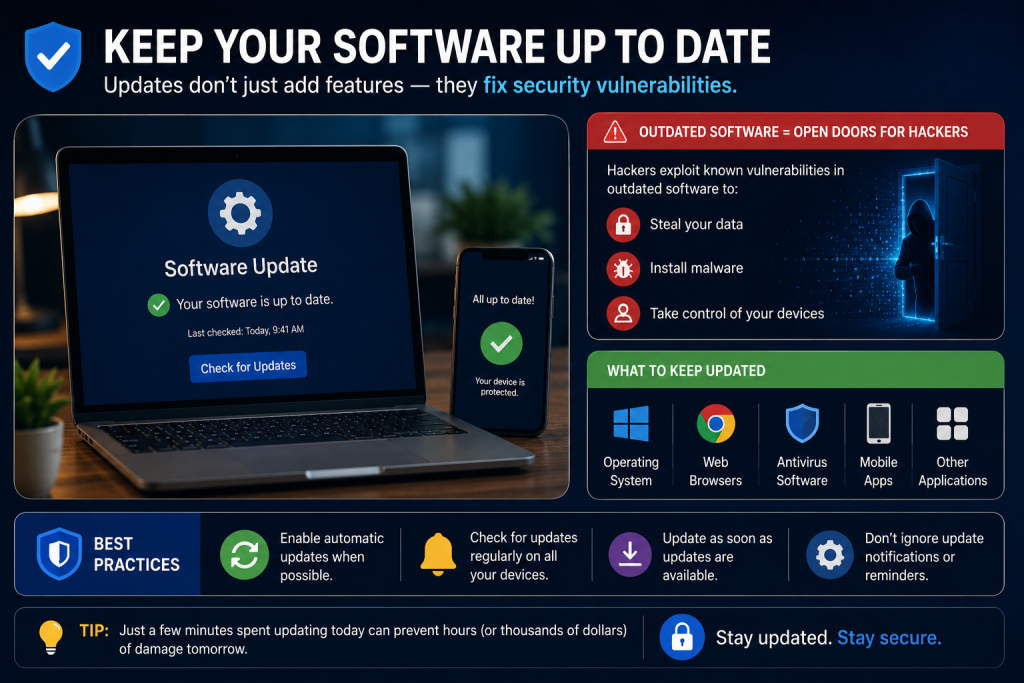
Software updates often include critical security patches.
This applies to:
- phones
- laptops
- browsers
- apps
- routers
- smart devices
Outdated software is one of the easiest ways attackers get access.
Enable Automatic Updates
Turn on automatic updates whenever possible for:
- Windows 11
- macOS
- iOS
- Android
- browsers like:
- Google Chrome
- Mozilla Firefox
- Safari
5. Be Careful With Public Wi-Fi
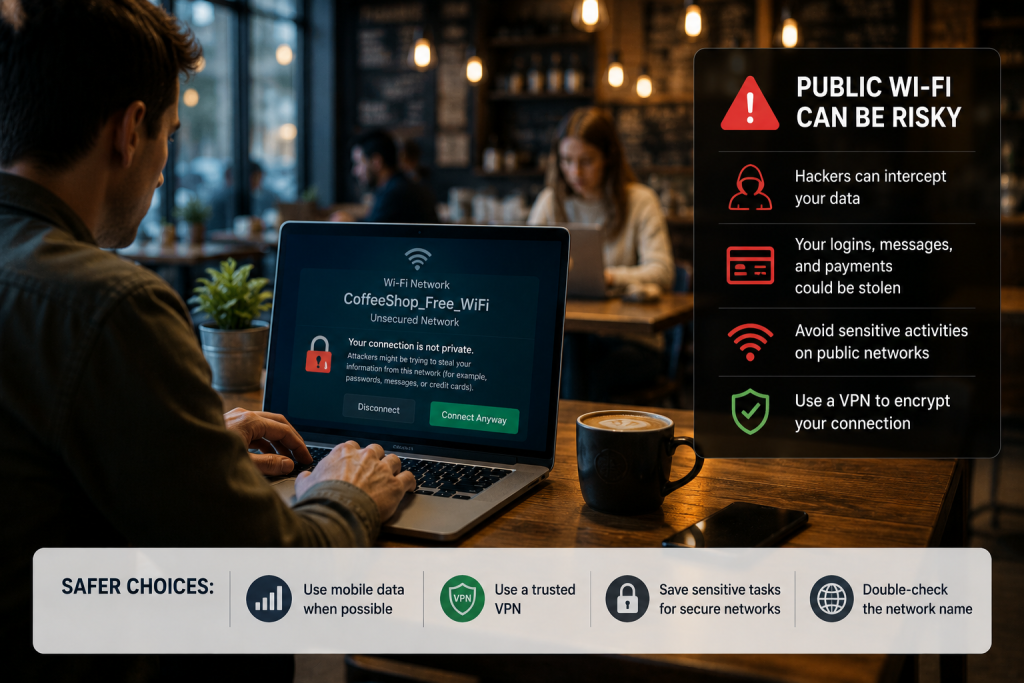
Public Wi-Fi networks can be risky, especially in:
- airports
- cafes
- hotels
- shopping malls
Attackers can sometimes intercept traffic or create fake networks.
Safer Habits
Avoid doing sensitive activities on public Wi-Fi:
- banking
- crypto transactions
- work logins
- password changes
If necessary:
- use mobile data
- use a trusted VPN
- avoid unknown networks
6. Back Up Important Data
Ransomware, device theft, or hardware failure can happen to anyone.
If your files exist in only one place, they’re vulnerable.
What To Back Up
At minimum:
- photos
- documents
- work files
- notes
- passwords recovery codes
Good backup options:
- external SSD/HDD
- cloud storage
- automatic sync services
Popular services:
- Google Drive
- Dropbox
- iCloud
- OneDrive
7. Install Apps Carefully
Not every app is trustworthy.
Some apps:
- collect excessive data
- track users aggressively
- contain malware
- request unnecessary permissions
Before Installing an App
Check:
- reviews
- developer reputation
- permissions requested
- number of downloads
- official website
Avoid:
- cracked software
- random APK files
- pirated apps
- browser extensions you don’t recognize
8. Secure Your Email First
Your email account is the “master key” to most of your online life.
If attackers gain access to your email, they can often reset passwords everywhere else.
Your Email Security Checklist
- use a strong password
- enable 2FA
- review recovery options
- remove unknown devices
- check forwarding rules
- monitor login alerts
This is one of the highest-priority steps in the entire list.
9. Check Your Accounts for Data Breaches
Sometimes your passwords leak in public breaches without you realizing it.
You can check whether your email has appeared in known breaches using services like:
If your account appears:
- change the password immediately
- enable 2FA
- avoid reusing that password anywhere else
10. Don’t Overshare Personal Information
Scammers often use public information for:
- phishing
- impersonation
- password recovery attacks
- social engineering
Be cautious about sharing:
- phone numbers
- addresses
- travel plans
- IDs/documents
- financial screenshots
- private family details
Especially on social media.
Quick Online Security Checklist
Accounts
- Use unique passwords
- Install a password manager
- Enable 2FA
- Secure your email account
Devices
- Enable automatic updates
- Lock devices with PIN/Face ID
- Install apps carefully
- Remove unused apps/extensions
Internet Safety
- Avoid suspicious links
- Verify websites manually
- Be cautious on public Wi-Fi
- Watch for phishing scams
Data Protection
- Back up important files
- Check for data breaches
- Limit personal information sharing
Final Thoughts
Online security doesn’t have to be complicated.
You don’t need military-grade cybersecurity knowledge to stay safe online – just a few solid habits practiced consistently.
If you only do three things after reading this article, make them these:
- use a password manager
- enable two-factor authentication
- stop reusing passwords
Those three steps alone will protect you better than most internet users.
FAQ
What is the most important online security tip?
Using strong, unique passwords combined with two-factor authentication is the biggest improvement most beginners can make.
Is antivirus software still necessary?
For most users, built-in protections in modern systems like Windows Defender are already quite good. Safe browsing habits matter even more.
Are password managers safe?
Yes – reputable password managers are generally much safer than reusing weak passwords.
Should beginners use a VPN?
A VPN can improve privacy and security on public Wi-Fi, but it’s not a magic solution. Strong passwords and 2FA are more important.